
The short version
- Calligraphr is a website. You print a template, scan or photograph it, and upload it in a desktop browser. SnapFont is a phone app: one photo, and the font is built and installed on the phone.
- Calligraphr's free plan gives you one font of up to 75 characters. SnapFont's free tier gives you your first font to type with in the app; installing and exporting it is Pro.
- Calligraphr wins on control: up to 600 characters, ligatures, and random letter variants on Pro ($10 for a month, or $6 a month for six months).
- SnapFont is faster and asks for less: 72 letters, about 20 minutes, no scanner, no computer, and a one tap install on iPhone.
Two tools, same job, different assumptions
I should say up front that I make SnapFont, so read this the way you would read any comparison written by one of the two sides. I have tried to keep it fair, and where Calligraphr is simply better I say so.
Both tools do the same thing. You write your letters on a printed sheet, the tool cuts them out and traces them, and you get a font file you can type with. The difference is what each one assumes you have on your desk. Calligraphr was built around a scanner and a desktop browser. SnapFont was built around the phone that is already in your pocket.
That one assumption shapes everything else: how many characters you write, how much editing you do afterwards, and what the font is worth to you once it exists.
The workflow, side by side
Calligraphr starts on the website. You build a template by choosing which characters you want, download it as a PDF, print it, and fill it in. Then you scan it, or photograph it, and upload the image on the site. From there you can adjust each letter, set the baseline and spacing, add ligatures and variants on Pro, and finally download a TTF or OTF.
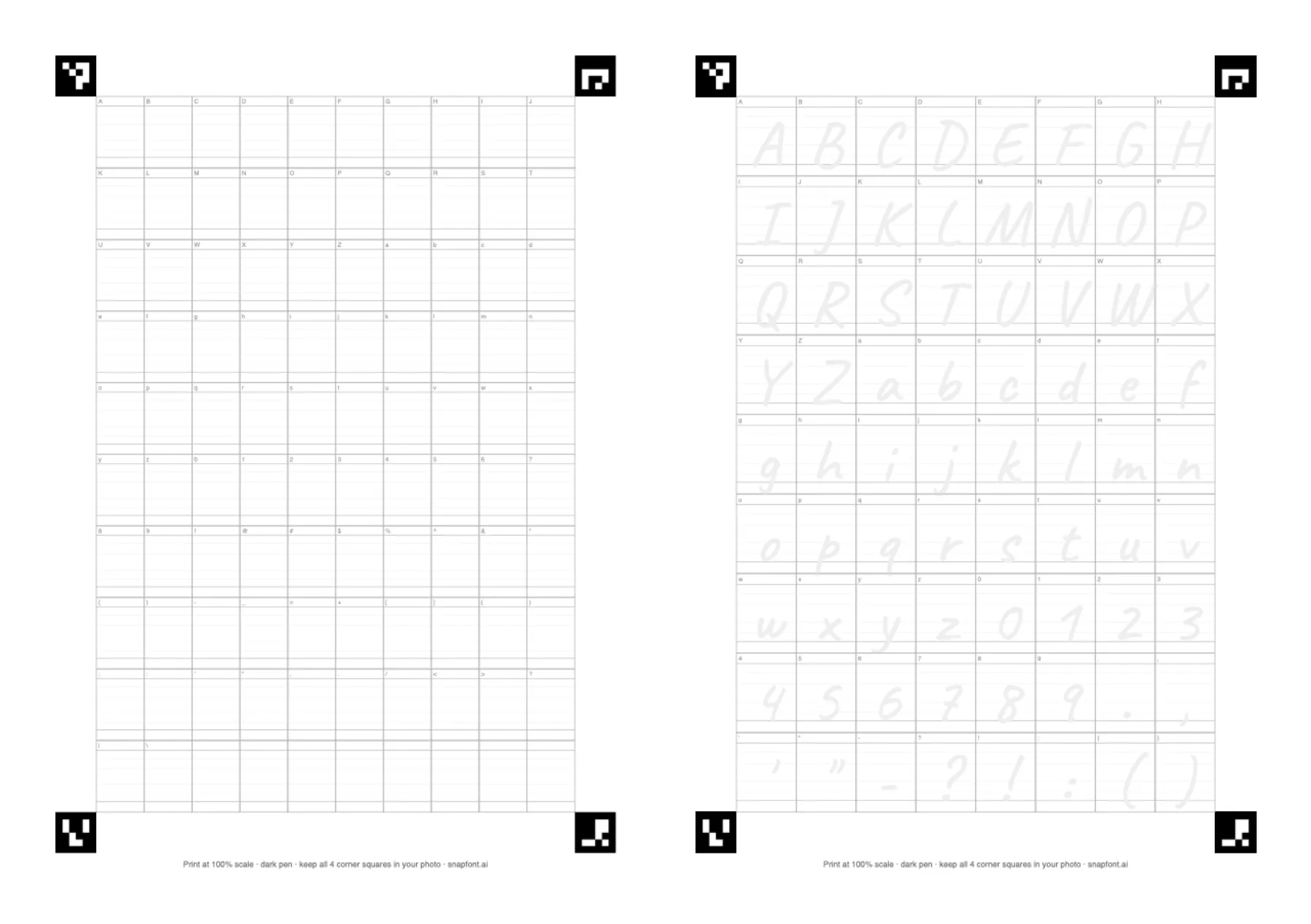
SnapFont starts on your phone. You print one fixed sheet with 72 boxes, each showing a faint letter to write over. You write the page, open the app, and take one photo. The app finds the corners, straightens the page, reads every box, works out the sizes and the baseline from your own writing, and shows you the font typing your name a few minutes later. On iPhone you tap once more to install it.
Put simply, Calligraphr gives you more decisions to make and SnapFont makes most of them for you. Which you prefer depends on whether you enjoy those decisions, and plenty of people do.
Feature comparison table
| Feature | SnapFont | Calligraphr |
|---|---|---|
| Where it runs | iPhone and Android app | Website, desktop browser |
| Capture | One phone photo | Scan or photo, then upload |
| Characters per font | 72 (letters, digits, key punctuation) | 75 free, up to 600 on Pro |
| Time to first font | About 20 minutes | Longer; depends on editing |
| Ligatures | No | Yes, on Pro |
| Random letter variants | No | 2 free, 15 on Pro |
| Manual per-letter editing | Review and re-capture single letters | Yes, in the browser |
| Install on iPhone | One tap, built in | Manual, needs a third party font app |
| Android | Exports the TTF | Downloads the TTF |
| Output format | TTF | TTF or OTF |
| Free plan | First font, typed in the app | 1 font at a time, 75 characters |
| Paid plan | Pro: weekly or yearly, trial on yearly | $10 for 1 month, or $6/month for 6 months |
| Who owns the font | You | You |
What you get for free
Calligraphr's free plan is real and useful. You get one font at a time, 75 characters per font, and two variants per character for the randomization feature. What you don't get is ligatures, letter spacing controls, or server side storage, so your work lives in the browser and can be lost if you clear it.
SnapFont draws the line in a different place. Making your first font is free, and so is typing with it inside the app. Owning the file, meaning installing it on your iPhone or exporting the TTF, is what Pro is for. I think of it like an aquarium: you can look all you like, and you pay when you want to take the fish home.
Pricing
Calligraphr Pro is $10 for one month or $6 a month if you buy six months at once. It is a one time upgrade, not a subscription that renews, and a font you made stays fully working after the upgrade ends. They also offer a money back guarantee. That is a fair deal for a desktop tool, and if you plan to make one careful font with hundreds of characters it is hard to beat.
SnapFont Pro is a subscription, weekly or yearly, with a free trial on the yearly plan. Prices are shown in the app in your local currency. Pro unlocks install and export, unlimited fonts, and re-capturing letters you want to redo. The subscription model fits how people actually use it: a lot of fonts over time rather than one big project.
Which fonts look better?
Both tools build the font from your real pen strokes, so most of the quality is you and your pen. A dark medium tip on white paper looks good in either. Where they differ is in what happens between the photo and the file.
Calligraphr leaves sizing and baseline to you. That is powerful if you know what you want, and a common source of wonky fonts if you don't. SnapFont measures your own sheet to decide where the baseline is and how tall each letter should be, so the finished font sits evenly without you touching anything. It also shows you every letter after the read and flags the ones that look off, so a smudged gdoesn't make it into the font unnoticed.
If you want ligatures (the joined th or ff pairs) or the natural variation of the same letter looking slightly different each time, Calligraphr does that and SnapFont does not. For a font that reads as continuous cursive, that matters. For a font that is clearly your print handwriting, it rarely does.
Which one should you pick?
If I didn't make SnapFont and someone asked me, I'd answer with a question: where do you want the font to live? If the answer is a print project with hundreds of characters, ligatures, maybe a second alphabet, and you don't mind an afternoon at a desk, Calligraphr is the better tool and I'd say so without much hesitation.
If the answer is your phone, and you want it there this afternoon without hunting for a scanner or getting a computer involved, that is the exact situation SnapFont was built for.
There is also nothing stopping you from using both. The output of each is a standard font file, so you can make a quick one with SnapFont for your phone and a bigger one with Calligraphr for a print project. I wrote up the full phone workflow in how to turn your handwriting into a font with one photo.